
Setting up your points or stamps program
Create your loyalty program, decide how many points each purchase earns and switch it on at the locations where you want to use it.
Updated on November 16, 2026
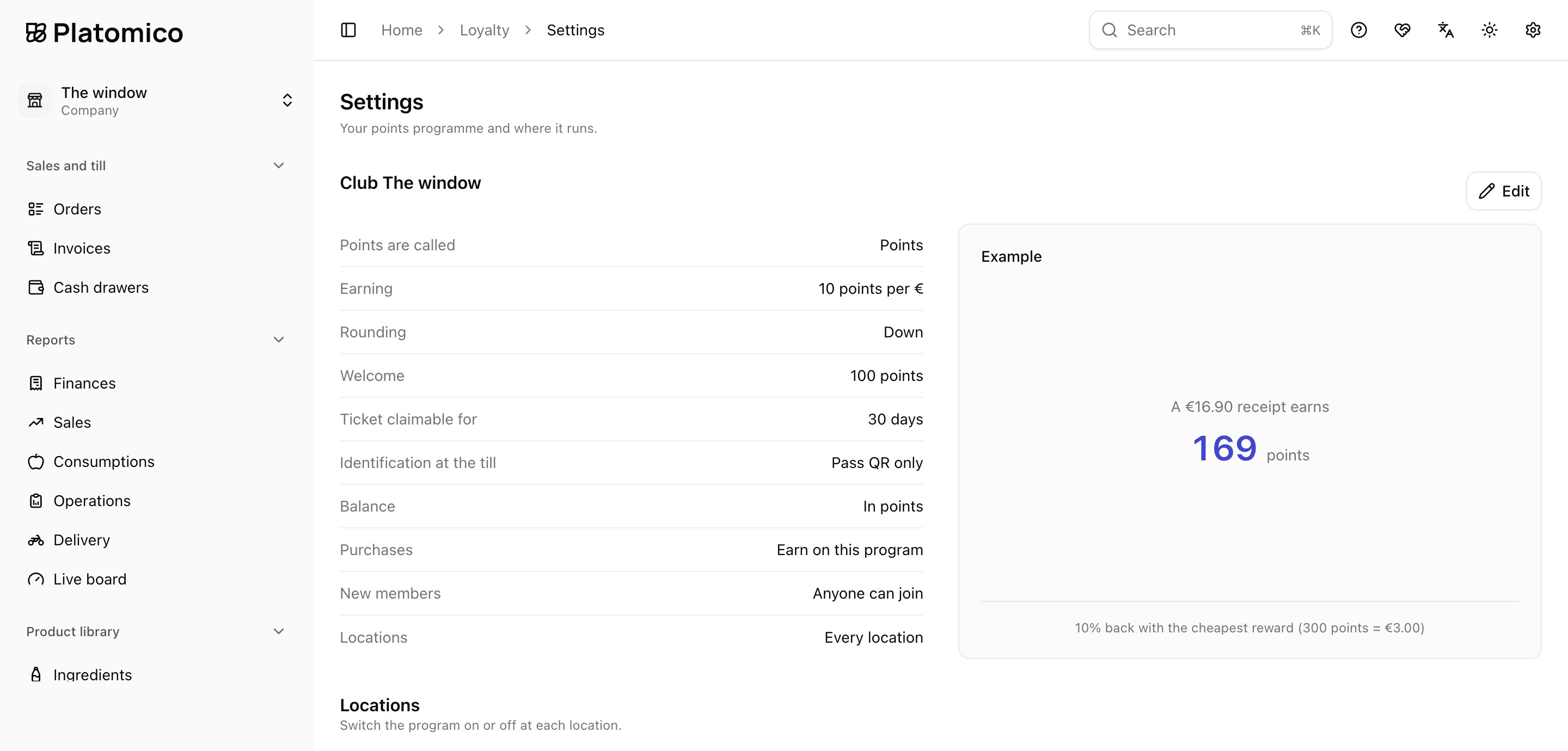
Creating the program
In Loyalty › Settings, tap "Create program" and fill in:
- "Name": the program's name, for example "Pink's Club".
- "Points per euro": how many points each euro paid earns. Up to two decimals.
- "Amount that counts": "Every cent" (€16.90 at 10 points per euro is 169 points) or "Whole euros only" (€16.90 counts as €16).
- "Points rounding", with "Every cent": "Down" or "To the nearest".
- "Welcome points": what each customer gets when they join. It can be 0.
- "Days to claim a printed receipt": how long a customer has to earn the points of a receipt with its QR, if they did not identify themselves when paying.
- "Identify by phone at the till": see the section below.
- "Name of the points": if you don't want them called "points", write the word for one and for several, for example "Pinkcoin" and "Pinkcoins". It is the name shown at the till, on receipts and in messages.
- "Locations": "Every location" or the ones you pick.
The "Example" box tells you how many points a receipt earns and how much your cheapest reward gives back. Tap "Create".
Points are worked out on what is paid.
Switching Loyalty on at each location
Creating the program does not start it. In Loyalty › Settings, the "Locations" table shows each one's "State":
- "Active": that location's POS earns and redeems your points.
- "Off": the location does not use Loyalty.
- "No program": it is switched on, but no program covers it. Add it to the program's "Locations".
- "Uses Square" or "Uses Comeback": the location uses another loyalty program.
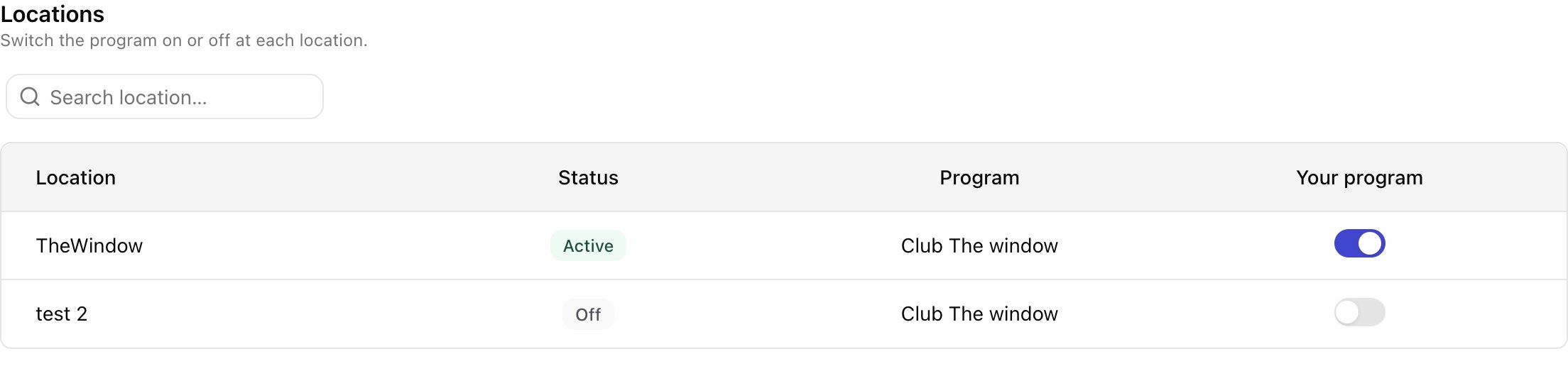
Switch each location on with its toggle and confirm with "Switch on". If the location used another loyalty program, it stops using it and moves to yours. When you switch it off, its POS stops earning and redeeming, but your customers' balances are kept.
After switching a location on, restart its POS and kiosk so they show Loyalty.
Identifying customers by phone at the till
By default, a member is identified at the till by scanning the QR on their card. If you switch on "Identify by phone at the till", their phone number is enough to earn and redeem too.
Bear in mind that anyone who knows a customer's phone number can then spend their points. The kiosk still asks for the QR.
Changing the program
Tap "Edit" on the program. If you change the points per euro or the rounding, printed receipts not claimed yet will earn with the new rule. Points already earned stay.
A program cannot be deleted or switched off. You have two switches:
- "Earns on purchases": off, no purchase earns points, but your customers can keep spending what they have.
- "Takes new members": off, nobody new joins, but your existing members keep earning and redeeming.
To stop using it at a location, switch that location off.
Stamps programs
A stamps program works like a stamp card: every purchase adds 1 stamp, whatever it costs. If you pick products in "Only purchases with…", only purchases that include one of them count. A dish inside a combo does not count, and a €0 purchase adds nothing. Your customers see stamps, never points: the welcome and the rewards are set in stamps.
To create one, turn on "Stamps: every purchase adds 1 stamp" when you create the program. Each location takes one points program and one stamps program at once. With both running, Settings asks "Where do new customers sign up?": in only one, or in both. If you choose both, every new customer gets two cards.
Was this article helpful?