
Members and invitations
See who belongs to your program, add customers, adjust their points by hand and invite them by text or email.
Updated on November 16, 2026
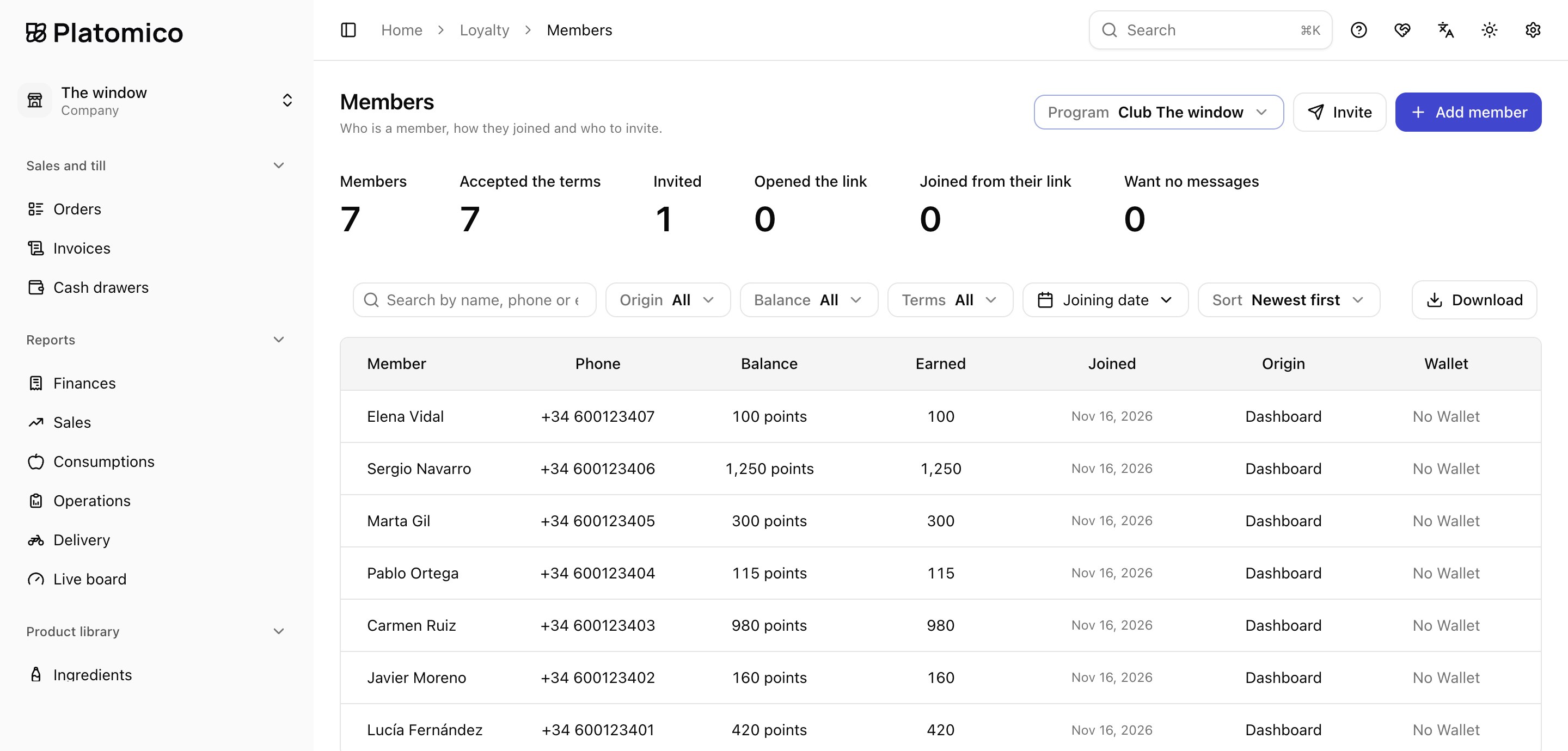
The member list
Loyalty › Members lists your program's members with their phone number, their "Balance" (the points they have now), what they have "Earned" (every point since joining), their joining date, their "Origin" (how they joined: "Till or kiosk", "Receipt", "Invitation" or "Dashboard") and whether they keep the card in their Wallet.
You can search by name, email or phone and filter by "Origin", "Balance" ("Has a balance", "Zero balance" or "In debt"), "Terms" (whether they accepted the program's terms), CRM "Audience" and "Joining date". "Sort" puts first the latest to join, the highest balance or those who have earned the most.
"Download" saves a CSV with every member matching your search and filters, not just the page you see, up to 50,000.
Adding a member from the dashboard
Tap "Add member" and enter their name, their phone number (with its prefix) and, if you like, their email. Before adding them you must tick "The customer accepted the privacy policy and the program's terms.": it is stored as their acceptance, with your user.
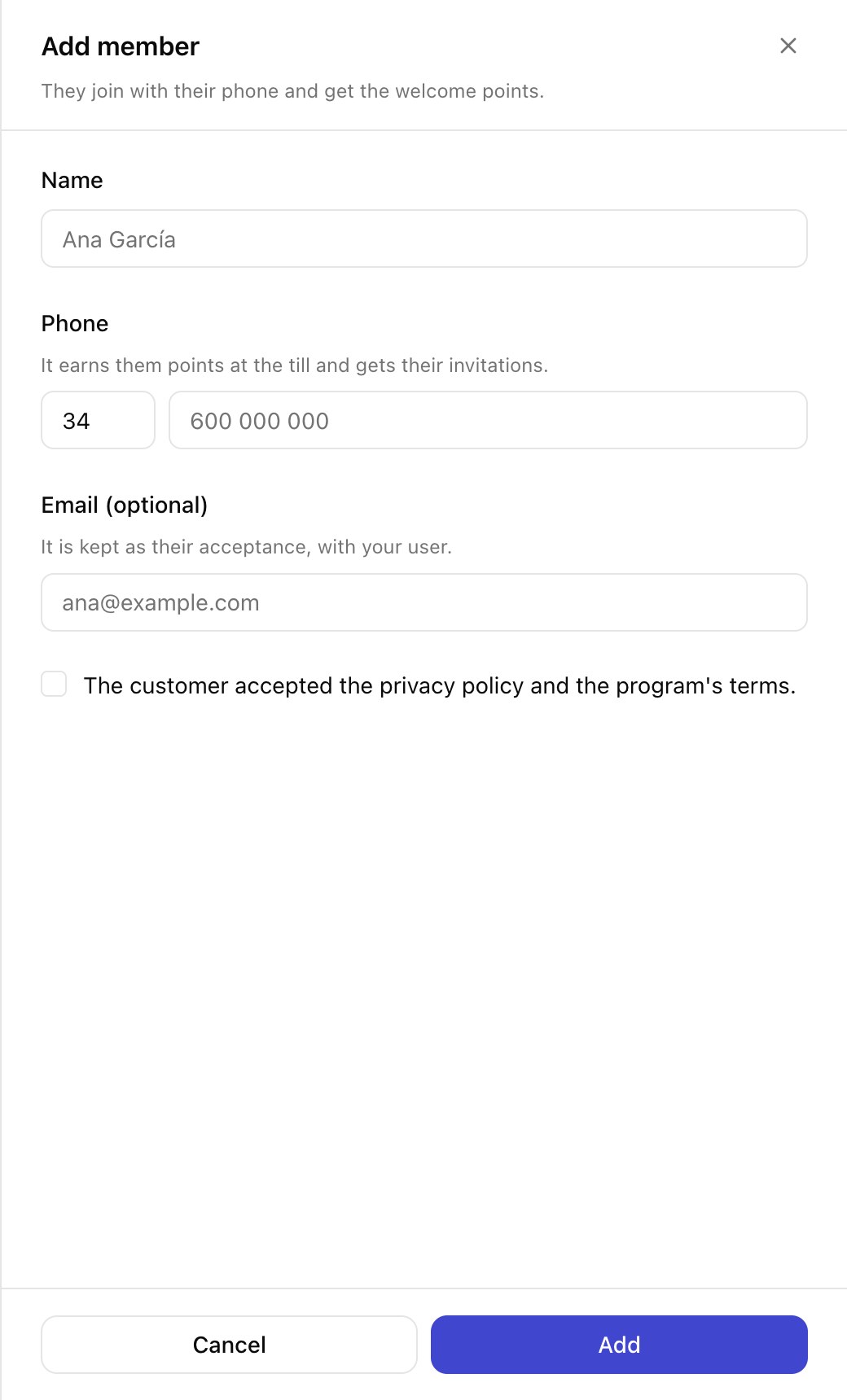
The customer gets the welcome points. If they were already a member, they are not added twice: their profile opens. With their phone number they can now earn points at the POS.
A member's profile
Tap a member to open their profile: their contact details, their balance and what they have earned. In "History" you see every points movement and the receipts they have claimed.
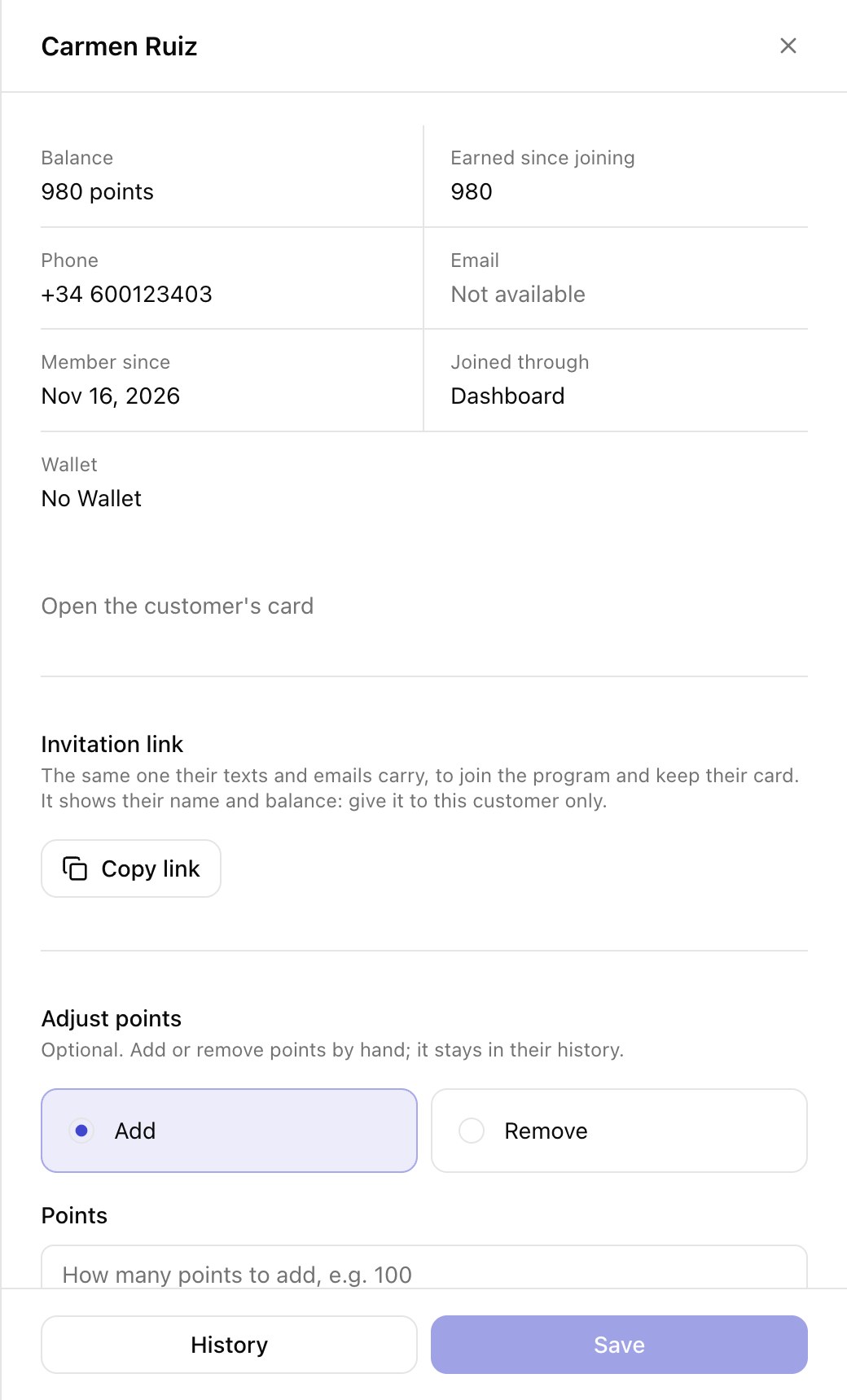
If a refund took back points they had already spent, their balance shows as owing points. The next points they earn settle that debt first.
Adjusting points by hand
On the profile, "Adjust points" adds or removes points, for example to make up for an order that arrived late:
- Choose "Add" or "Remove" and enter how many, from 1 to 10,000.
- If you like, write a reason, from 3 to 200 characters.
- Tap "Save" and confirm.
The adjustment stays in their history as "Manual adjustment", with your user and the reason. You cannot go below 0: a member with no balance or in debt can only be given points.
Inviting your customers by text
Tap "Invite" in Loyalty › Members:
- In "Send to", choose who: every customer in your CRM, a program group ("Not joined yet", "Members with points" or "Every member") or CRM audiences. In "Leave out (optional)" you can exclude audiences.
- Enter the "Sender", up to 11 letters or numbers without accents, and the message. The message must include the link and can include the customer's name, their balance and the names of the points and the program. It takes up to 3 texts; a single accented letter turns it into 70 characters per text.
- If you like, tap "Send test" to get it on your phone with sample data (up to 20 tests a day).
- Tick "I confirm I may send marketing texts to these customers." and tap "Send invitations".
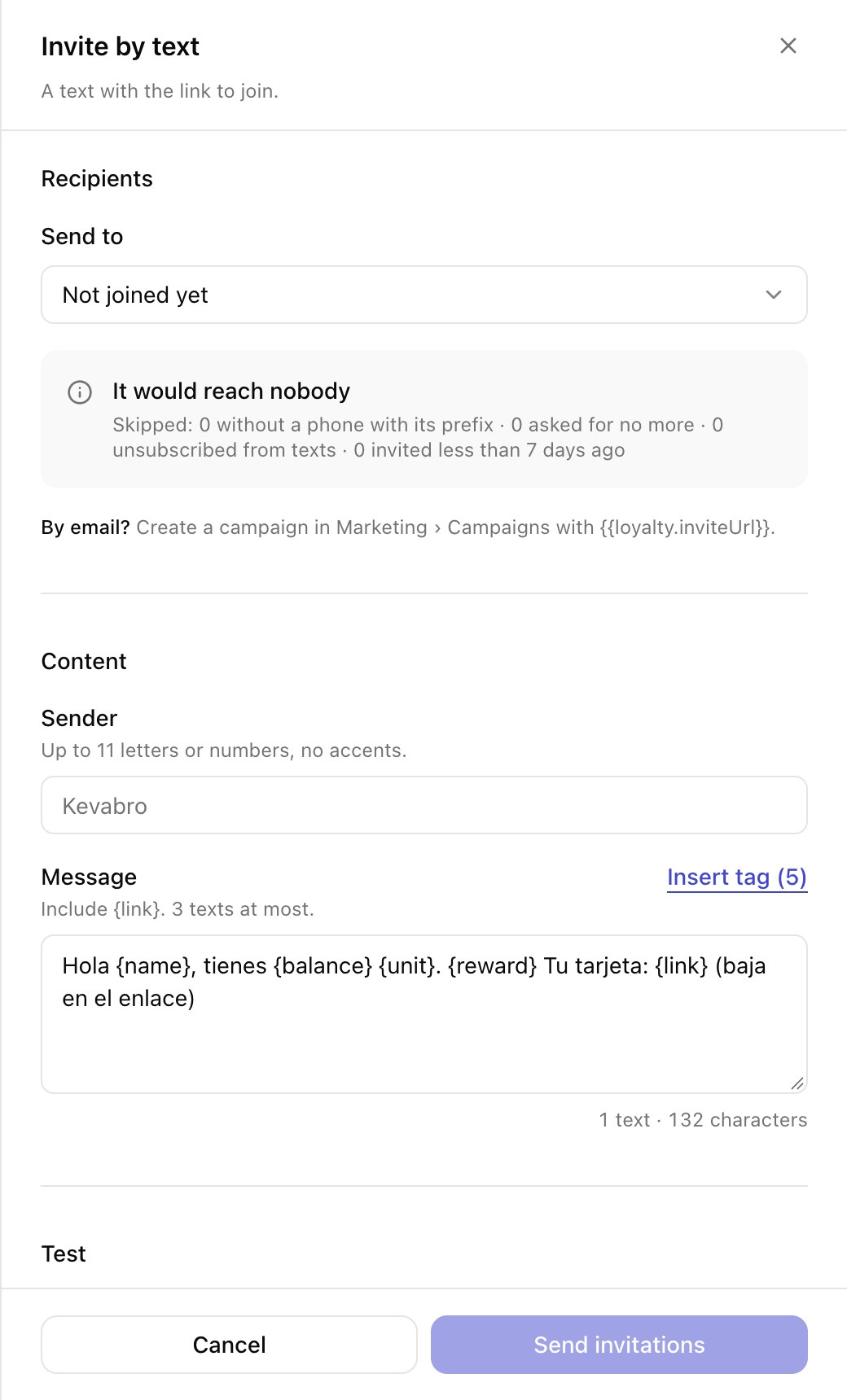
While you choose, you see how many customers it will reach. It skips anyone without a phone number, anyone who does not want messages and anyone invited in the last 7 days. Each text has a cost.
Above the list you see how many were invited, how many opened the link and how many joined, and under it the result of each send.
Inviting by email or with a link
- By email: create a campaign in Marketing › Campaigns with the
{{loyalty.inviteUrl}}tag, which inserts each customer's invitation link. - With a link: on a member's profile, or on a customer's in Marketing › Customers, "Invitation link · Copy link" copies their personal link for you to send. It shows their name and balance, so give it only to that customer.
A customer who is not a member yet joins from the link and gets the welcome points.
Was this article helpful?