
Devices
Register POS, kitchen displays, kiosks and printers and link them with a code.
Updated on November 21, 2026
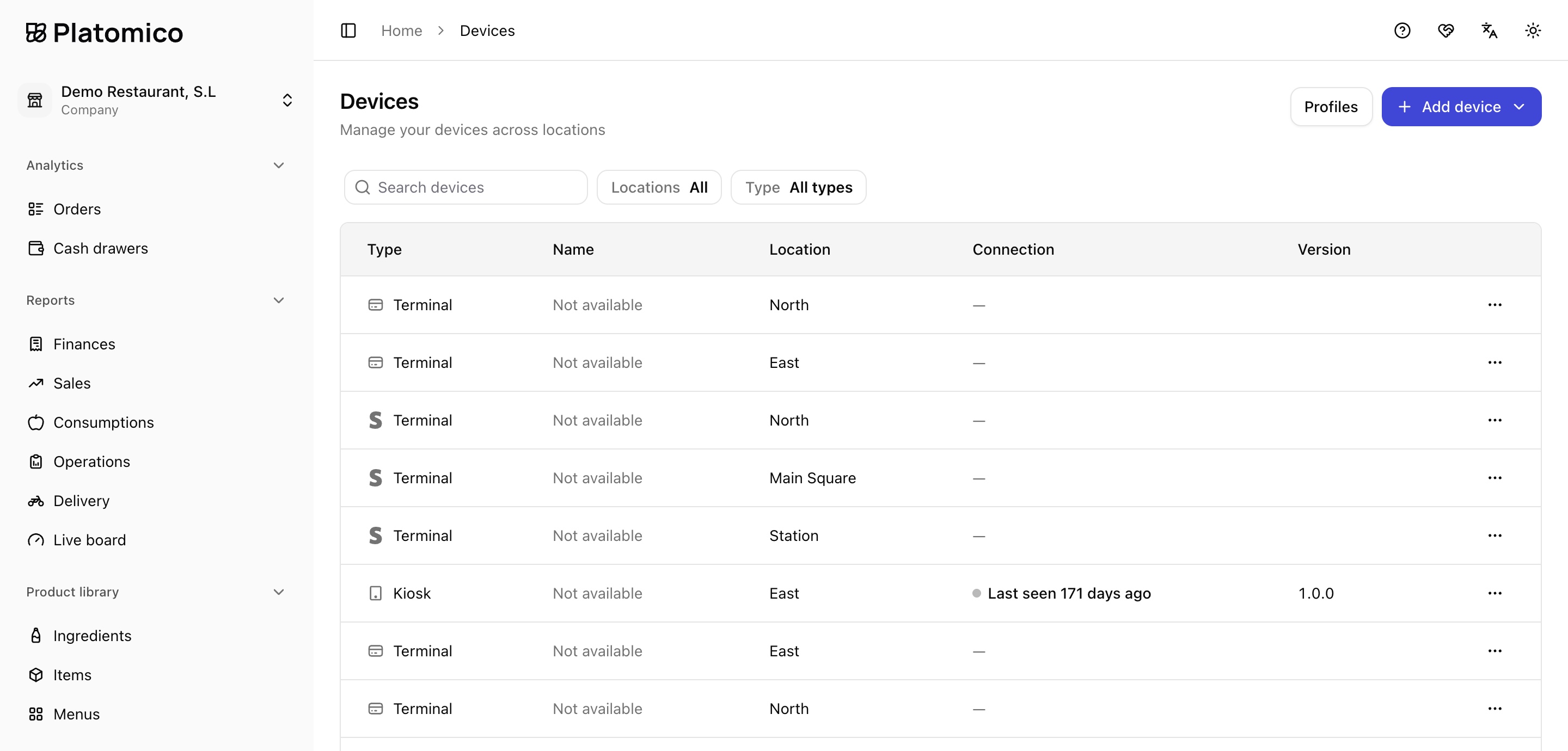
Registering devices
Operations › Devices registers every Register, Kiosk, KDS, printer, cash drawer and cash machine. Click Add device and choose the Type, Location and a Name. A Register, Kiosk or KDS can also take a Profile that sets its behaviour; profiles are managed with the Profiles button.
Your first Register doesn't need this form: in Getting started, Add Register creates it in one click. Card terminals connected to Platomico are added with Connect card terminal, under the same Add device button, once you have one; see Taking card payments.
Connecting the tablet of a Register, Kiosk or KDS
When you add a Register, Kiosk or KDS, its window to connect it opens. First it tells you what to install, on the Android and iPad tabs; then Show the code shows a 9-digit code and a QR. Type that code in the app on the tablet or scan the QR from it. When the tablet connects, the window shows Connected.
Each code works once and expires after 15 minutes; while the window is open, it renews itself. If you close it before the tablet connects, click Connect on the device's row (or in its ⋯ menu) and you get a new code. With the tablet online, Connect shows Already connected.
The steps on the tablet, the PIN and the first sale are in Installing the Register and making the first sale.
The buttons staff tap on the Register are no longer arranged from Devices: they are edited in Product library › Menus, on each menu's Register tab.
Was this article helpful?